Friday, February 5, 2016

Copying Locked Files with PowerForensics

[Cmdlets referenced in this article must be run with Local Administrator or equivalent permissions]
Every Forensicator or Incident Responder has run into the dreaded ‘locked file’ at least once (probably A LOT more than once). Whether it is the Master File Table, UsnJrnl, or a Registry Hive, it seems that juicy forensic data is always contained in one of these locked files. One of my favorite PowerForensics features is the ability to find a file’s data on disk and access it directly, bypassing file system restrictions such as permissions and file locking. This feature is a key component of PowerForensics, forming the base on which all artifact parsing is built. The image below shows what happens when I try to use PowerShell’s Copy-Item cmdlet to make a copy of the SAM hive… I receive a “file in use” error.


Screenshot 2016-01-31 12.33.12.png


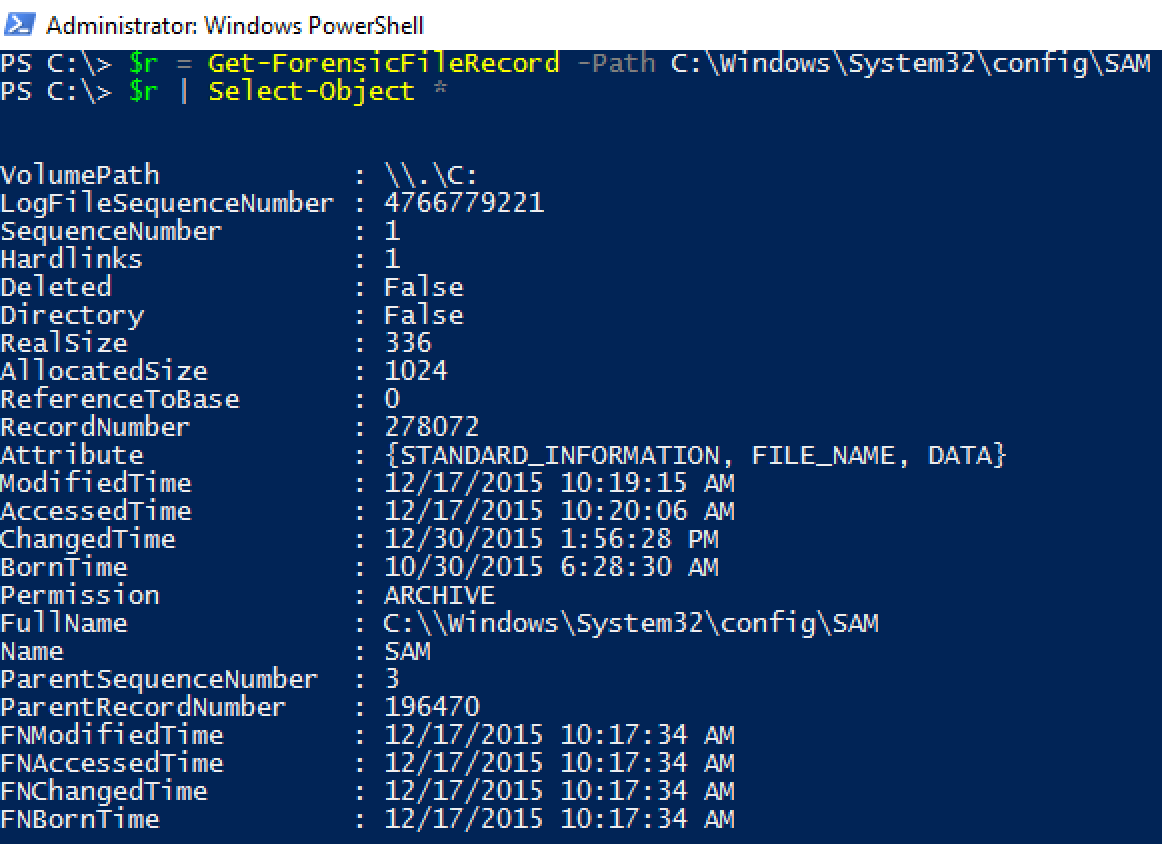
This post looks at three methods to copy a locked file with PowerForensics. For us to properly understand what is happening under the hood for each of these methods we must start by viewing the SAM hive’s Master File Table Entry (File Record). Get-ForensicFileRecord is PowerForensics’ cmdlet for parsing the Master File Table. In the image below we are using the Path parameter to look at the single entry for the SAM hive.

Screenshot 2016-01-31 12.35.57.png


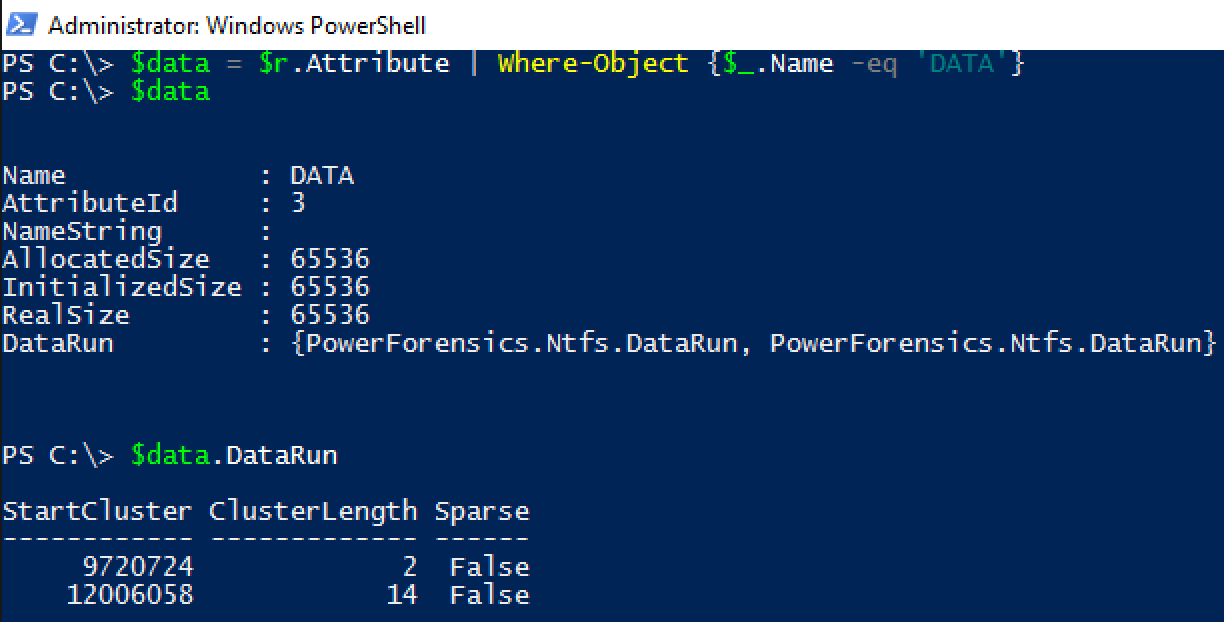
Get-ForensicFileRecord returns a FileRecord object representing a Master File Table entry. NTFS files store their content in two ways, resident or nonresident. If the data is resident, it is stored within the 1024 byte Master File Table Record which typically means it is less than 600 bytes. In most cases, the data is nonresident meaning it is stored elsewhere on the hard drive. In the case of nonresident file data, the Master File Table Record’s ‘DATA’ attribute contains pointers to the actual contents. In the following image we see that the SAM file’s contents are of the nonresident type, and we are able to drill in enough to see that the Data Runs are those pointers I talked about before.

Screenshot 2016-01-31 12.39.33.png


According to the Data Runs the SAM hive is a fragmented file that is made up of 2 clusters starting at cluster 9720724 and 14 clusters starting at cluster 12006058. The rest of this article explains three different methods that leverage this information to access the SAM hive’s content and copy it to a non-locked file that can be analyzed offline.

Method 1: Invoke-ForensicDD

Invoke-ForensicDD is my best effort at porting the classic unix disk duplicator (dd) utility to PowerShell. We can use this cmdlet to copy the bytes that represent the SAM hive without accessing the SAM hive (the file) directly.

Screenshot 2016-02-02 09.22.56.png


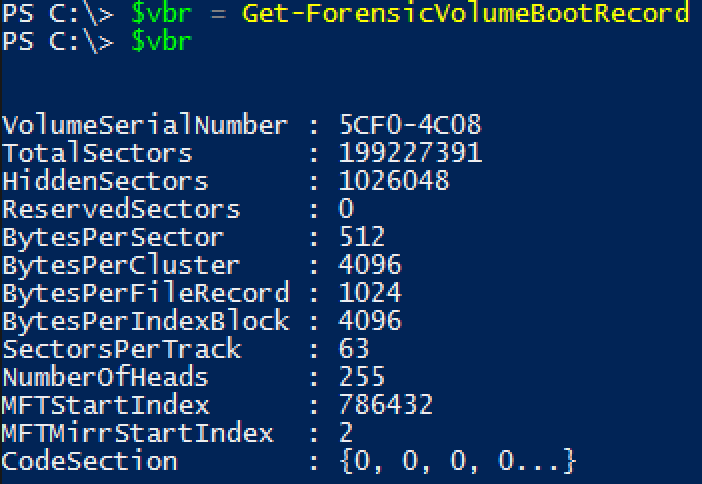
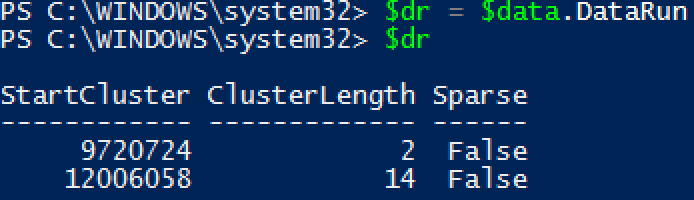
Now that we have the VBR we know that this volume is formatted with 4096 bytes per cluster. Next, let’s revisit the SAM Hive’s DataRun property. Remember that in this case we are dealing with a fragmented file which is why we see two DataRun entries.

Screenshot 2016-02-02 12.24.09.png


The first fragment starts at cluster 9720724 and is 2 clusters in length and the second fragment starts at cluster 12006058 and is 14 clusters in length. With this information we can use Invoke-ForensicDD to copy both fragments to a file.


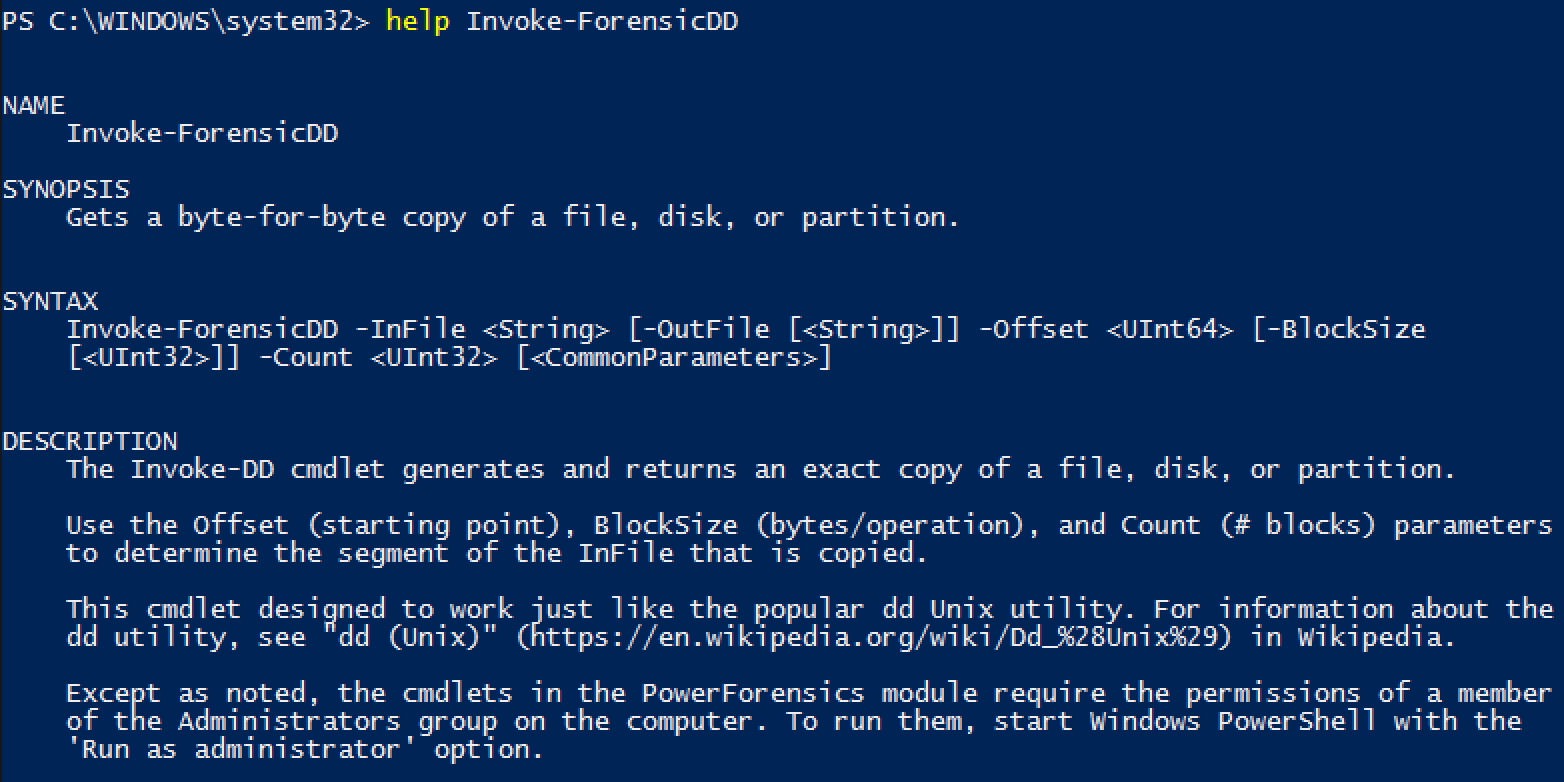
Before we use Invoke-ForensicDD, let’s look check out its cmdlet help for usage instructions.

Screenshot 2016-02-02 12.10.41.png


According to the help, we must provide an InFile (the file, volume, or disk to read from), an optional OutFile (the file to output the data to), an Offset (location to start reading from), BlockSize (the number of bytes to read at one time), and a Count (the number of “Blocks” to read). Since we are dealing with a fragmented file we will need to issue the command once per fragment (twice total in this example). We will be reading from the \\.\C: logical volume (InFile), and will output to C:\evidence\SAM_copy1 (OutFile). Our Offset and BlockSize parameters are derived from each DataRun. The offset will equal DataRun.StartCluster * VolumeBootRecord.BytesPerCluster or in the case of fragment 1 9720724 * 4096. The BlockSize will be DataRun.ClusterLength * VolumeBootRecord.BytesPerCluster or for fragment 1 2 * 4096. For these examples we will set Count to 1. In the image below you can see Invoke-ForensicDD is used twice, once for each fragment, to copy the SAM Hive to the evidence directory.


NOTE: In the picture below, I store a lot of information in variables. This was done to make the image easier to follow and is not 100% necessary.
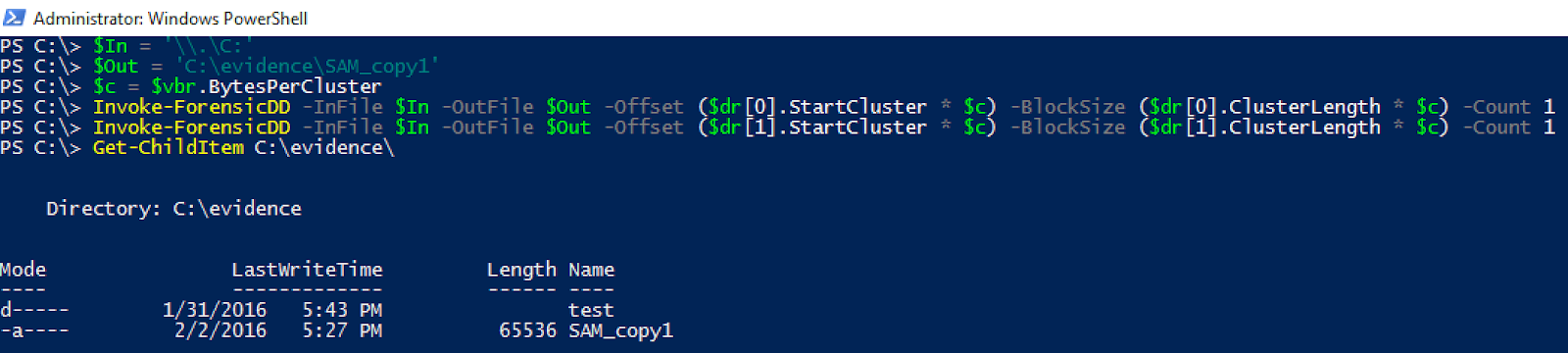

Screenshot 2016-02-02 12.27.53.png


Now we can open SAM_copy1 in our favorite Registry viewer.

Method 2: CopyFile Method

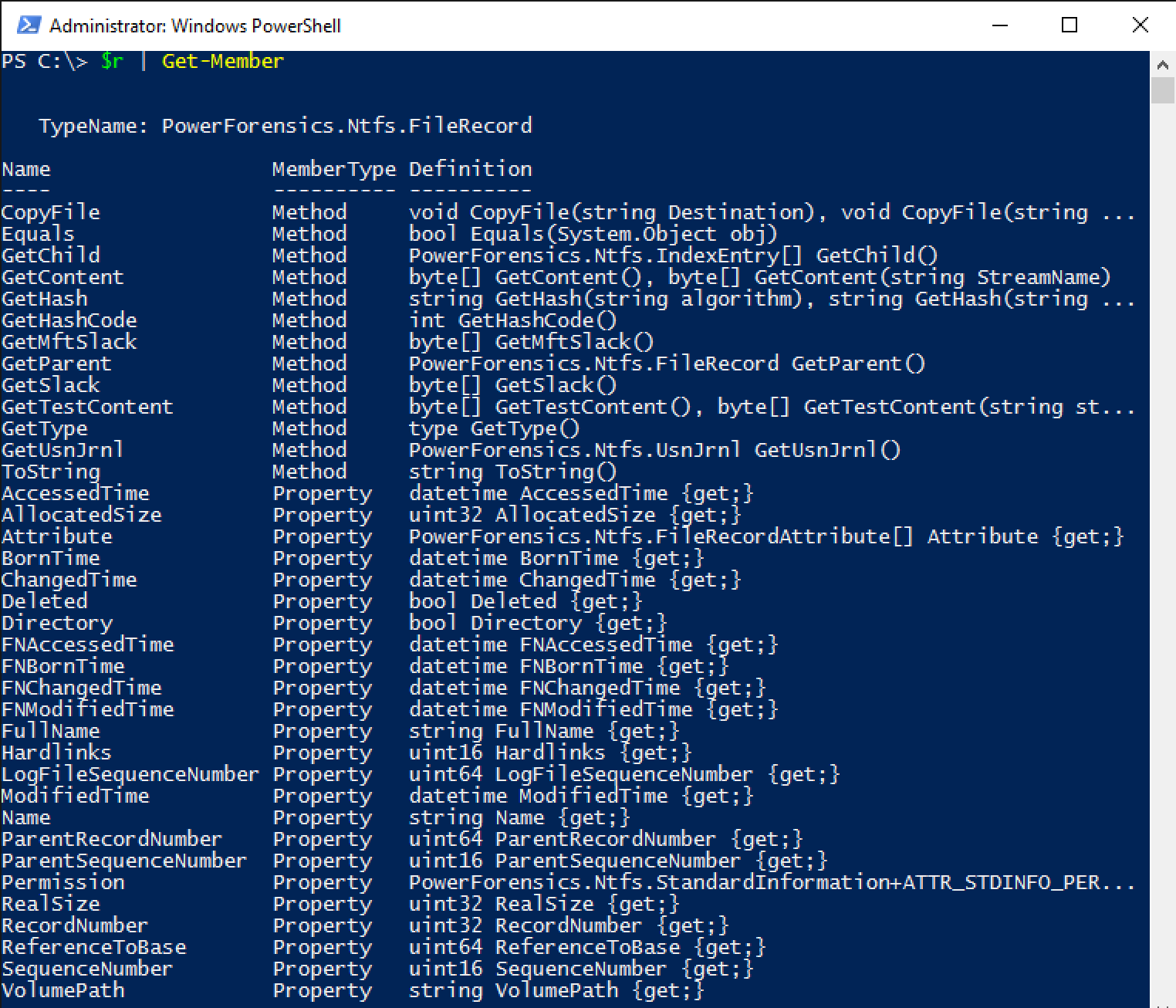
Without realizing it we already have another method set up. The PowerForensics.Ntfs.FileRecord object has CopyFile method built in. CopyFile understands the major concepts of how data is referenced in the Master File Table, so concepts like resident vs. nonresident data and fragmentation are made transparent to the user. The image below pipes our save FileRecord object into the Get-Member cmdlet which outputs a list of methods and properties that make up a FileRecord object (remember that $r is stored the result of Get-ForensicFileRecord from earlier).

Screenshot 2016-02-01 11.04.55.png


You may have noticed that the CopyFile method was the very first method in the list and that it has multiple overloads or ways to call it. To get a better view of the method overloads, and thus what arguments the method is expecting, we can call the method without parentheses as seen in the next image.


Screenshot 2016-02-02 09.14.21.png


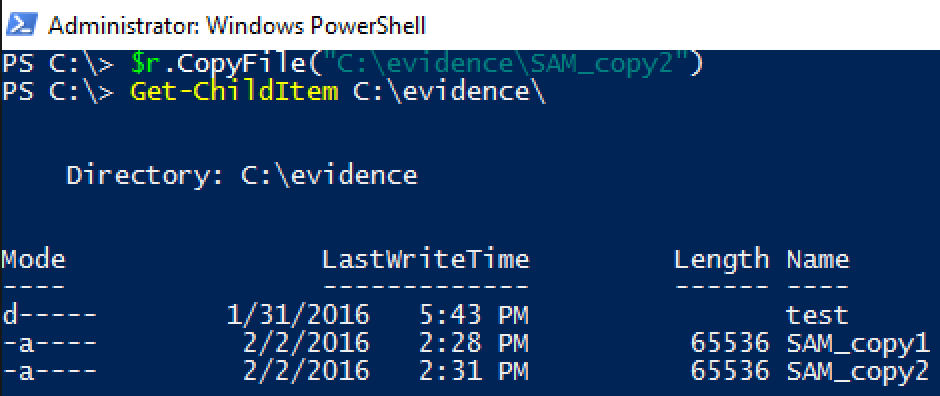
It appears that there are two ways to call CopyFile. We will be focusing on the first overload since we are dealing with the main “data stream”. If we wanted to copy a specific “data stream”, often referred to as an Alternate Data Stream, we would use the second overload. Now all we have to do is execute the method with a destination path (C:\evidence\SAM_copy2) and we end up with a perfect copy of the SAM hive.


NOTE: PowerShell requires strings to be enclosed in quotes when passing it to a method.

Screenshot 2016-02-02 09.31.44.png


There you have it, we now have SAM_copy2 in the C:\evidence directory. Looks like method 2 was successful.

Method 3: Copy-ForensicFile

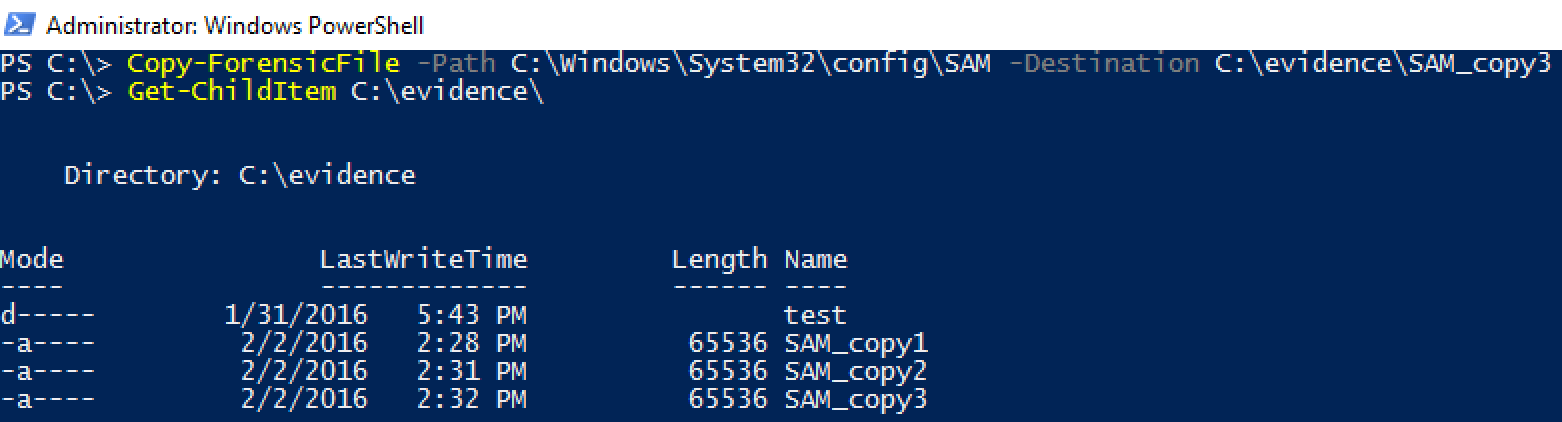
The third method provides even one more layer of abstraction to the user. The Copy-ForensicFile cmdlet requires a Path and a Destination and will do all of the work for you. In the image below, I show Copy-ForensicFile being used to copy the SAM hive to C:\evidence\SAM_copy3.

Screenshot 2016-02-02 09.33.03.png


Once again, it looks like our copy was successful. We have what we assume are three identical files that were copied using three different techniques. To check to make sure all three files are the same we run them through PowerShell’s Get-FileHash as seen below.


Screenshot 2016-02-02 09.33.43.png


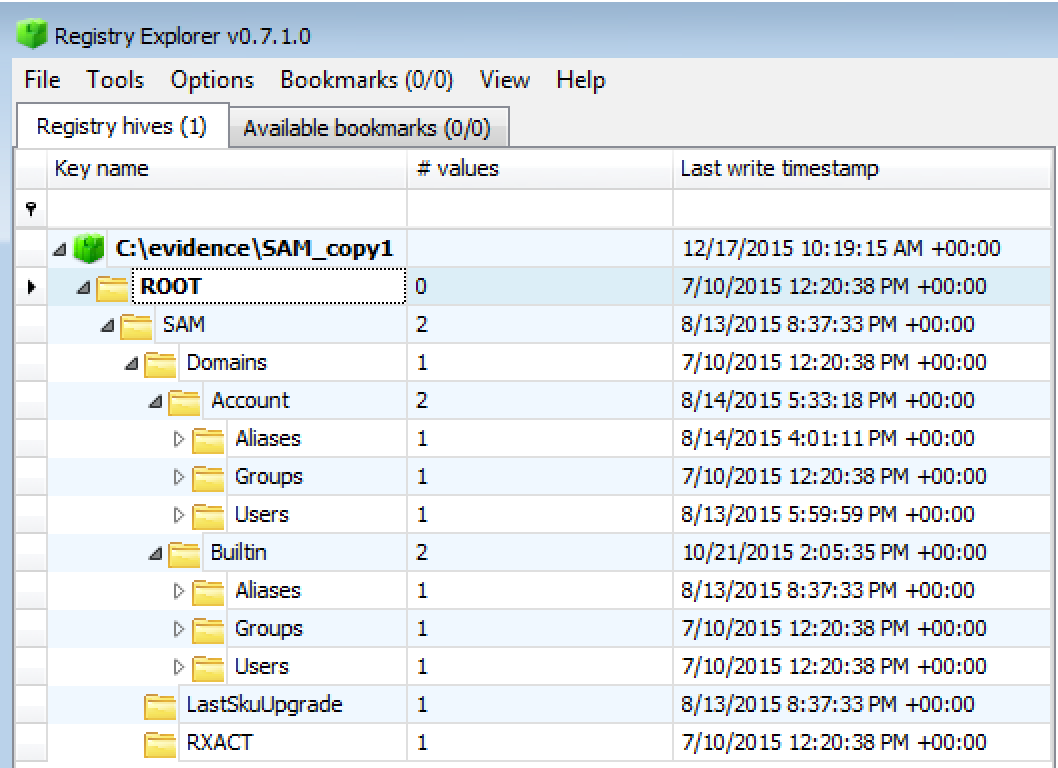
Looks like all three files are identical. Now that we have copied the SAM hive we can use Eric Zimmerman’s Registry Explorer to view them.

Screenshot 2016-02-02 12.52.07.png

Looks like it opened successfully! As you might have guessed each of the three techniques build off each other. The beauty of having three different methods is the granularity of control that each gives you. Method 1 allows you to copy any arbitrary bytes from a hard drive, but may require a bit more “forensic” knowledge to know what bytes are important. Method 3 requires very little background knowledge but will accomplish the task that it is meant to accomplish. One of the cooler concepts behind PowerForensics is that this single tool can leverage each of these techniques to accomplish the next step in the analysis chain. If you want to parse the SAM hive that can be accomplished via Get-ForensicRegistryKey and Get-ForensicRegistryValue which uses the same code in the background as Copy-ForensicFile with the exception of creating an output file. Stay tuned for many more articles and blog posts on different PowerForensics capabilities and use cases.

Monday, June 29, 2015

On the Forensic Trail - Guid Partition Table (GPT)


[This is the 3rd in a multi-part series titled "On the Forensic Trail".  My goal with this series is to introduce my PowerShell Forensics module called PowerForensics, and the forensic artifacts that it parses.  This post covers the Guid Partition Table (GPT), an alternative hard disk partitioning scheme to the Master Boot Record, and how to use PowerForensics to inspect it.]

For help with downloading/installing PowerForensics please visit the Installing PowerForensics article.


As United Extensible Firmware Interface (UEFI) begins to replace legacy BIOS firmware interfaces, we will see the rise of the Guid Partition Table (GPT) as a replacement for the Master Boot Record.  The UEFI Specification requires that all compliant firmware supports the GPT partitioning scheme, so GPT will begin to become more common as UEFI is implemented by vendors.  That being said, the GPT partitioning scheme is not unique to UEFI, as it is also supported by many modern BIOS systems.

This post explores the Guid Partition Table data structure, and focuses on how PowerForensics can be used with it.

Advantages of GPT
The GUID Partition Table provides a number of advantages over the legacy Master Boot Record disk layout.  Three of the main advantages of the GPT disk layout are listed below:

1)  Logical Block Addresses (LBAs) are 64 bits (rather than 32 bits) increasing the maximum partition size from 2 TiB to 8 ZiB. 
2)  GPT supports many partitions (rather than just four primary partitions). 
3)  Provides both a primary and backup partition table for redundancy.  Two GPT Header structures are stored on the device: the primary and the backup. The primary GPT Header must be located in LBA 1 (i.e., the second logical block), and the backup GPT Header must be located in the last LBA of the device. 

GPT Data Structure
Protective MBR
When a disk is formatted with a GPT disk layout, a Protective MBR is located at Logical Block Address (LBA) 0.  The Protective MBR is used to provide compatibility with legacy tools that do not understand the GPT format.  The Protective MBR is functionally equivalent to a normal or "Legacy" MBR, but only has one partition.  The first/only partition will be of type 0xEE (EFI_GPT_DISK) and reserves the entire disk starting at LBA 1 for the formal Guid Partition Table structure.  

It is worth noting that the MBR Boot Code (the first 440 bytes) is not executed by UEFI Firmware. 


    In the example below, the Get-MBR cmdlet is used to display the MBR Partition Table of a GPT formatted disk.  The output shows that there is one EFI_GPT_DISK partition that starts at LBA 1 (the sector immediately following the Protective MBR) and ends at LBA 4294967295 (or 0xFFFFFFFF which represents the entire disk).


    Guid Partition Table
    The formal Guid Partition Table begins at LBA 1 where the GPT Header is found.

    GPT Header
    The GPT Header describes the logical layout of the disk as a whole.  The location of the GPT Header  is described by the MyLBA value and should always be 1, while the AlternateLBA value points to the backup GPT and will always be the last sector on disk.  It contains the DiskGUID, which is used to uniquely identify the disk, and CRC32 values which are used by firmware to detect corruption of the GPT itself.  If the GPT is corrupted, the original GPT will be replaced with the backup GPT.  The FirstUsableLBA and LastUsableLBA values define the portion of the disk that is not reserved by the GPT and therefore can be used by the partitions.  Lastly, the header provides us with details about the Partition Array itself.  The PartitionEntryLBA value points to the start of the array, and its overall size can be derived from the NumberOfPartitionEntries and SizeOfPartitionEntry value.


    Partition Array
    The GPT Header points to the Partition Array via the PartitionEntryLBA value.  The size and number of partitions are defined in the GPT Header (The number of partitions value may not correspond with the number of actual partitions, but rather the space reserved for partition entries).  

    Each partition contains two GUIDs, one representing the type of partition (see this table to interpret) and the second is used to uniquely identify the partition.  The StartingLBA and EndingLBA values to describe the location and size of the partition.  Lastly, 64 bits are reserved for attribute flags, and 72 bytes are reserved for a null terminated name string.


    PowerForensics Cmdlets
    PowerForensics currently has three cmdlets that deal specifically with the GPT (Get-GPT, Get-BootSector, and Get-PartitionTable).  This portion of the post will explain the cmdlets and go through a few example use cases.

    Get-GPT
    Get-GPT is a cmdlet that parses the GUID Partition Table data structure contained within the first few sector of the device specified.  Get-GPT requires the use of the -Path parameter which takes the Win32 Device Namespace (ex. \\.\PHYSICALDRIVE1) for the device from which the GPT should be parsed.

    In this example, Get-GPT is executed against \\.\PHYSICALDRIVE1 and returns a GuidPartitionTable object.
    If Get-GPT is run against a disk formatted with a Master Boot Record, it will throw an error prompting you to use Get-MBR instead.
    InvokeIR.PowerForensics.GuidPartitionTable Object
    Get-GPT outputs an InvokeIR.PowerForensics.GuidPartitionTable object.  This object contains 11 readonly properties (property descriptions provided by the UEFI Specification):


    1)  Revision -  The revision number for this header.
    2)  HeaderSize - Size in bytes of the GPT Header. Must be greater than or equal to 92 and must be less than or equal to the logical block size.
    3)  MyLBA - The LBA that contains this data structure.
    4)  AlternateLBA -  LBA address of the alternate (backup) GPT Header. 
    5)  FirstUsableLBA - The first usable logical block that may be used by a partition described by a GUID Partition Entry.
    6)  LastUsableLBA - The last usable logical block that may be used by a partition described by a GUID Partition Entry.
    7)  DiskGUID - GUID that can be used to uniquely identify the disk.
    8)  PartitionEntryLBA - The starting LBA of the GUID Partition Array.
    9)  NumberOfPartitionEntries - The number of Partition Entries in the GUID Partition Array.
    10)  SizeOfPartitionEntry - The size, in bytes, of each the GUID Partition Entry structures in the GUID Partition Array.
    11)  PartitionTable - An array of InvokeIR.PowerForensics.GuidPartitionEntry objects.

    Get-BootSector
    The Get-BootSector cmdlet provides an alternative to the Get-MBR and Get-GPT cmdlets.  Get-BootSector reviews the hard drive's first sector and determines if the disk is formatted using the Master Boot Record or Guid Partition Table partitioning scheme.  Once the partitioning scheme is determined, Get-BootSector acts just as Get-MBR or Get-GPT would respectively.

    NOTE: Since making Get-BootSector, I rarely use the Get-MBR or Get-GPT cmdlets, but have kept them in the module in case anyone finds a reason for them.


    Here Get-BootSector running against a disk formatted using the GPT partitioning scheme.  The cmdlet returns an InvokeIR.PowerForensics.GuidPartitionTable object.
    When Get-BootSector targets an MBR formatted disk it returns an InvokeIR.PowerForensics.MasterBootRecord object.
    Get-PartitionTable
    Like Get-BootSector, Get-PartitionTable determines the type of boot sector (Master Boot Record or Guid PartitionTable) and returns the correct partition object (InvokeIR.PowerForensics.PartitionEntry or InvokeIR.PowerForensics.GuidPartitionTableEntry). 
    As a reminder, this is an example of Get-PartitionTable being run against an MBR formatted disk and returning an PartitionEntry object.
    In this example, Get-PartitionTable is run against a GPT formatted hard drive disk (\\.\PHYSICALDISK1).  The cmdlet returns an array of GuidPartitionTableEntry Objects.


    InvokeIR.PowerForensics.GuidPartitionTableEntry Object
    When Get-PartitionTable is run against a GPT formatted disk, the cmdlet outputs an InvokeIR.PowerForensics.GuidPartitionTableEntry object.  The GuidPartitionTableEntry object is made up of 6 readonly properties (property descriptions provided by the UEFI Specification):


    1)  PartitionTypeGUID - Unique ID that defines the purpose and type of this Partition. A value of zero defines that this partition entry is not being used.
    2)  UniquePartitionGUID -  GUID that is unique for every partition entry.
    3)  StartingLBA - Starting LBA of the partition defined by this entry.
    4)  EndingLBA - Ending LBA of the partition defined by this entry.
    5)  Attributes - Flag value representing the partition's attributes.
    6)  PartitionName - Null-terminated string containing a human-readable name of the partition. 

    References

    Friday, May 1, 2015

    On the Forensic Trail - Master Boot Record (MBR)


    [This is the 2nd in a multi-part series titled "On the Forensic Trail".  My goal with this series is to introduce my PowerShell Forensics module called PowerForensics, and the forensic artifacts that it parses.  This post covers the Master Boot Record, a disk structure that describes the logical layout of the disk in the form of partitions, and how to use PowerForensics to inspect it.]

    For help with downloading/installing PowerForensics please visit the Installing PowerForensics article.


    Master Boot Record is the name given to the first sector (typically 512 bytes) of a physical disk. Technet states that the MBR is "the most important data structure on the disk".  The MBR itself contains boot code, a disk signature, the partition table, and an end of sector marker which is always 0x55AA.

    For a detailed breakdown of the MBR please see the poster above.

    Windows Boot Order
    Before diving into the MBR's boot code, it is important to review the boot order for Windows Operating Systems.

    1.  The BIOS and CPU initiate the Power-on self-test (POST)
    2.  The BIOS searches for a boot device (HDD, Floppy, CD, etc.)
    3.  The BIOS reads the first sector of the device (Master Boot Record) into memory, and transfers CPU execution to that memory address.

    Now that we have covered the boot process, lets look at what happens once the CPU transfers execution to the MBR.

    Boot Code
    The goal of the Master Boot Record's boot code is to find the bootable partition and transfer execution to it.  To find the bootable partition the following checks must occur:

    1.  Search for an active partition (where the partition status is 0x80 or "Bootable")
    2.  Checks that no other partitions are marked as bootable
    3.  If partition is the only bootable partition, then the boot code will read the partition's Volume Boot Record (first sector, 512 bytes, of the partition) and transfer CPU execution to that memory address.
    4.  The VBR is checked for the proper end signature (0xAA55).

    Errors
    If steps 2 - 4 fail then an execution is halted and an error message is displayed.  Below are the error messages for each step.

    Step 2: If another partition is marked as bootable, the message "Invalid partition table" is displayed.
    Step 3: If there is a problem loading the VBR, the message "Error loading operating system" is displayed.
    Step 4: If the end signature is not present, the message "Missing operating system" is displayed.

    Now that the we have covered how the boot code interacts with the partition table, lets talk about the structure of the partition table and its entries.

    Partition Table
    The partition table is a 64 byte structure made up of 4 0x10 (16) byte partition entries. The fixed size of the partition table limits the OS to 4 partitions, but modern OS have built in the capability for many more partitions through a concept called extended partitions.

    Below I will cover the important values contained within a partition entry.

    Partition Status
    The 1st byte in every partition entry represents the Partition Status (whether the partition is bootable or not).  The Partition Status field has two acceptable values, these values are 0x00 (Non-Bootable) and 0x80 (Bootable).

    It is important to note that only one partition can be marked as bootable per disk.  If this condition is not met, the "Invalid partition table" error will be thrown by the boot code.

    Partition Types

    The 5th byte of the partition table represents the type of file system the partition is using.  A list of partition type ids can be found here.  This value helps the operating system determine which file system device driver to load on startup.

    It is worth noting that NTFS partitions will have an id of 0x07.

    Cylinder Head Sector (CHS) Addressing
    The operating system uses Cylinder Head Sector (CHS) Addressing to determine the location of the volume.  Bytes 2 - 4 and 6 - 8 represent the volume start address and end address respectively. The three bytes representing the CHS address are broken up such that the cylinder value is 10 bits, the head value is 8 bits, and the sector value is 6 bits.  Since disks are formatted with 512 byte sectors this addressing scheme only allows for a maximum addressable size of 7.8 GB.  As hard drive sizes increased, Logical Block Addressing (LBA) was introduced allowing much larger address ranges.

    Partition Location
    Most modern disks use the "Relative Starting Sector" and "Total Sectors" values to determine the location of volumes.  Each of these values are 4 bytes in size, and this allows for a maximum addressable size of right around 2 TB.

    This limit is only exceeded by the introduction of the Guid Partition Table (GPT), which I will write about at a future date.

    Bootkits

    MBR boot code executes before the Operating System is loaded, and thus executes in Ring 0 without the normal Operating System protections.  This fact makes the MBR a viable location for malicious code in the form of bootkits.  I have begun research to identify a hash value for the MBR code section for a number of Windows operating systems and popular unix boot loader LILO and GRUB.  These hash values/signatures should help identify when the code section of the MBR has been tampered with, which could lead to bootkit detection.

    NOTE: I admit this is not a full featured solution as a bootkit could easily detect disk IO and return false data, but at this time there are only a few publicly release bootkits that have been found to do this. 

    PowerForensics Cmdlets
    PowerForensics currently has two cmdlets that deal specifically with the MBR.  This portion of the post will explain the cmdlets and go through a few example use cases.

    Get-MBR
    Get-MBR is a cmdlet that parses the Master Boot Record data structure contained within the first sector of the device specified.  Get-MBR requires the use of the -Path parameter which takes the Win32 Device Namespace (ex. \\.\PHYSICALDRIVE0) for the device from which the MBR should be parsed.


    InvokeIR.PowerForensics.MasterBootRecord Object
    The output of Get-MBR is a InvokeIR.PowerForensics.MasterBootRecord object.  The MasterBootRecord object has four readonly properties:


    1)  DiskSignature - the 4 byte hex value that identifies the disk to the operating system
    2)  BootCode - a byte array of the MBR boot code
    3)  MBRSignature - a string representing the signature associated with the BootCode byte array (The 4)  MBRCodeArea is hashed and compared to a list of known MBR code signatures, benign and malicious. The string identifies which, if any, signature the BootCode matches).
    5)  PartitionTable - an array of InvokeIR.PowerForensics.PartitionEntry objects

    Below is an example of Get-MBR being run against \\.\PHYSICALDRIVE0 and being asked to return all properties (by default Get-MBR only returns MBRSignature and DiskSignature to console).


    InvokeIR.PowerForensics.PartitionEntry Object
    The InvokeIR.PowerForensics.PartitionEntry object represents an entry in the MBR partition table.  Each PartitionEntry object has four readonly properties:


    1)  Bootable - a bool indicating whether the partition is bootable
    2)  StartSector - the offset from the beginning of the disk to the beginning of the volume counting by sectors
    3)  EndSector - the offset from the beginning of the disk to the end of the volume counting by sectors
    4)  SystemID - a string defining the volume type (NTFS, FAT, etc.)

    Here I am using the Select-Object cmdlet to expand the PartitionTable property of the MasterBootRecord object.


    Introducing the -AsBytes Switch Parameter
    While developing PowerForensics I wanted to make each cmdlet as flexible as possible.  I realized that returning the raw bytes for a data structure may be just as appealing as returning an object representing the data structure.  With this in mind, I have added a switch parameter to each cmdlet that parses a data structure called -AsBytes.  When the -AsBytes parameter is used, the cmdlet returns the raw bytes representing the structure instead of the expected object.

    Below is an example of Get-MBR being used with the -AsBytes switch parameter.  In this example, I passed the output to Lee Holmes' Format-Hex cmdlet.


    This example shows the -AsBytes switch parameter to save the MBR data structure's raw bytes to a file.


    Get-PartitionTable
    The Get-PartitionTable cmdlet is functionally the same as Get-MBR, but instead of returning an MBR object it returns an array of non-empty PartitionEntry objects.


    Future Work
    Currently PowerForensics does not have support for extended partitions or the UEFI Guid Partition Table (GPT).  I plan on adding support for these structures in the very near future.

    My next post will break down the GUID Partition Table (GPT), which is a newer alternative to the Master Boot Record.

    References

    - Invoke-IR - By Jared Atkinson -